

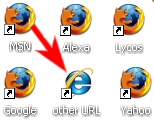

Method 1 – Create from Scratch
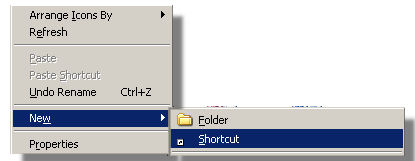
Right click on the desktop and select New -> Shortcut:

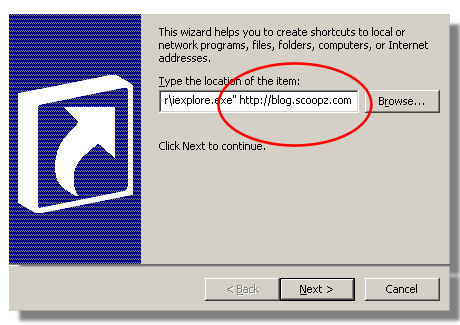
You will then be asked for the location of the item for the shortcut. Ordinarily you would just type http://the_url_you_want/ here but that would cause the page to open in your system’s default browser which is not what you want. Instead, copy and paste one of the following depending which browser you want to force the shortcut to open in:
To force open a URL in Internet Explorer:
“C:\Program Files\Internet Explorer\iexplore.exe” http://url_you_want
To force open a URL in Firefox:
“C:\Program Files\Mozilla Firefox\firefox.exe” http://url_you_want
After copying the blue text above you simply past that into the item location field, replacing the “url_you_want” with your chosen url. For example, if you had firefox set as your default browser but wanted to have a shortcut to http://blog.scoopz.com/ that always opened in Internet Explorer it would look like:
"C:\Program Files\Internet Explorer\iexplore.exe" http://blog.scoopz.com

Method 2 – Modify a shortcut to the browser
What if you want to open in a browser other than IE or Firefox (Opera or Safari, etc). You can acieve the same result as Method 1 by first creating a shortcut to the browser program itself and then modifying this shortcut to include the URL or web page you want.
Click on Start, Programs and find the browser you wish to use. Click and drag the icon for the browser to the desktop from the Programs menu whilst holding down the CTRL key.


You should now have a shortcut to the browser on your desktop. In this example I have chosen Internet Explorer (see icon to the left).
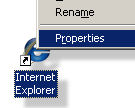

All you need to do now is click on the target field in the properties page and scroll to the very end (or hit the End Key on the keyboard). You now need to type the URL that you wish to open at the end of this field, in the example to the right I have chosen http://blog.scoopz.com and appended this to the end of the target. Leave all the other settings the same for now and that’s the new shortcut done.
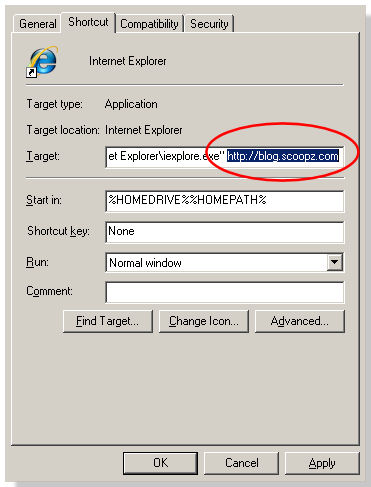

From this shortcut page you can easily choose a Shortcut Key combination (CTRL+ALT+B, etc) to launch your shortcut instantly and choose whether to open the web page in a maximised, minimised or normal sized window.
UPDATE Jan 2010 – As several users have pointed out in the comments, the above techniques do not work if you are running Vista or Windows 7 as the path to internet explorer EXE file has changed. In this case or if you want to apply the above to other browsers here’s what Xygris recommends:
For those with other browsers, different operating systems or just updated versions with different paths try just copying the shortcut from your start menu to your desktop (via drag & drop) and them appending the new shortcut with the URL.
Thanks for the heads up Xygris.
Bloody Genius! Thanks so much, worked like a charm!
Thank you so much – this was EXACTLY what I was looking for for days. I was amazed others need this also, but judging by the dozens of comments, this is a widely necessary link creation method.
Thank you.
You’re welcome, I’m glad we were able to help you figure this one out and judging by the amount of traffic this post gets it’s something that lots of people are searching for help with.
Scoopz
Exactly the information I required. It was deceptively simple, but then again nothing is as straight forward in Windows as it ought to be.
Thanks 1G.
OS X will rule the World one day 🙂 sadly, like many others, I’m stuck managing a windows environment at work but it’s all OS X at home.
Really useful way to do this. I searched in vain for a solution to a simple problem: In schools they usually have a default browser which cannot be changed to another. Some websites don’t work properly in Explorer (usually the default that is set) but work fine in Chrome. This method has provided me with the means to set up a shortcut to run Chrome and open a specific website – which for 5 and 6 year old kids is much easier than getting them to key in the URL! Many thanks.
Thanks for your comment Keith. It’s frustrating that this is still an issue with Windows 10, you would hope Microsoft would have made it easier to pick a default app for a shortcut by now. Win XP, Vista, 7, 8 and 10 all have this same niggle.
Scoopz
All of these solutions assume the shortcut will only be used on a single machine, is there any way to launch a link within Google Sites using IE 9+ (Win7) on different machines without asking all the users to create shortcuts ?
Sure, you can setup a GPO (Group Policy Object) that will create a shortcut on the user’s desktops for them.
great info! thanks so much
I found a simple way to open an internet shortcut in XP in any browser I want without making any changes to the shortcut. If someone has already mentioned this I apologize, but I haven’t seen it in this thread. Simply put a shortcut to the non-default browser “exe” file in the following folder: C:\Documents and Settings\”User”\SendTo. Then right click on any internet shortcut and send it to that browser. Works like a charm for me.
Very helpful and well written. Thank you 🙂
lot of thanks….i was thinking to write script. 🙂 but this is the simplest solution i never think about. always my head works in a complex way. again thanks.
For 64bit system to look in 32bit firefox the folder path is
“C:\Program Files (x86)\Mozilla Firefox\firefox.exe” http://www.google.dk
also look on some of this variables for batching files
http://ss64.com/nt/syntax-variables.html
I have Windows 7 and have the same or similar problem. After inadvertently installing Google Chrome, bundled deceptively with another program, I noticed it had become my default browser. After running IE10, it informed me of the change and offered to reinstate its self as the default browser. This I accepted gladly. Now with IE10 functioning as default, some days later I created a web shortcut to an FTP site on my desktop (rightclick desk-top|shortcut) and to my chagrin a Google Chrome icon appeared; and when used, expectedly, opened the site via Chrome!!! I hunted high and low and could only find the work-arounds noted above. Thanks for the contribution btw, it worked and helped. But the underlying problem still existed. After more serious hunting, I found the solution. 😀
1) Open IE10
2) Press and release the alt key (menu items appear)
3) Select “Tools”
4) Select “Internet Options”
5) Select “Programs” tab
6) Select “Set Programs” button under Internet programs heading
7) Select the “Set your default programs” option
8) Select the browser you wish to modify from the left column.
9) Select “Choose defaults for this program” at the bottom of the page
10)A list of options will appear, check each blank box that you want windows to open or assign shortcuts to, with the browser selected in step 8.
11) press “Save” and close all windows.
12) Try it! 😀
Btw – I’m not railing on Chrome other than for their invasive distribution tactics! I prefer clear choices as to exactly what is being installed on my computer. And when it is installed, I expect to be able to choose exactly what functions it will take over. “Simplicity” seems to override freedom in this regard.
Thanks for the blog post. Very helpful.
THANK YOU!
This is exactly the solution that I have been searching for on and off for about 6 months now! THANK YOU THANK YOU THANK YOU!
I found a simple way to open an internet shortcut in XP in any browser I want without making any changes to the shortcut. If someone has already mentioned this I apologize, but I haven’t seen it in this thread. Simply put a shortcut to the non-default browser “exe” file in the following folder: C:\Documents and Settings\”User”\SendTo. Then right click on any internet shortcut and send it to that browser. Works like a charm for me.
I was having problems with the C: or http:// being added at the beginning, too. I use Firefox but wanted to make my sister a shortcut for yahoo mail to open in IE. This is what I did to make it work. Hope it helps:
Followed the instructions above and right clicked on the desktop and select New -> Shortcut
When the wizard popped up, I hit the browse button and located the IE exe file on my computer and clicked on it. (“C:\Program Files\Internet Explorer\iexplore.exe”)
I went ahead and named the shortcut Yahoo Mail and clicked finished.
I now had a shortcut on my desktop that would open IE.
I right clicked on the shortcut on my desktop and chose properties
When the properties box opened, in the target field, I added one space at the end of the IE command and then typed http://mail.yahoo.com with no quotes.
I hit apply and closed everything out. The next time I clicked the shortcut, yahoo mail opened in IE.
When I went back and checked the shortcut link, it looked correct like the one above:
“C:\Program Files\Internet Explorer\iexplore.exe” http://mail.yahoo.com
Just to make it easier on her, I went back and right clicked on the shortcut, chose properties, then chose Change Icon and replaced the IE icon with the Yahoo Icon (I did a search on my compter for all icon files to locate it).
Have Windows Professional SP3.
Typed
“c:/Program Files/Internet Explorer/iexplore.exe” http://www.advancemd.com
into URL for shortcut but it gets changed by explorer to
http://“c:/Program Files/Internet Explorer/iexplore.exe” http://www.advancemd.com
When I try to launch the shortcut, it will not launch anything.
Any help would be appreciated.
I’m having the same problem was “Steve March 17 2011” with the extra C:\ being added to my shortcut. Apparently he figured out how to fix it, unfortunately he didn’t say what he did, too bad!
Thanks that will save tons of time for me instead of having to switch back and forth.
Fantastic site. A lot of helpful info here. I am sending it to some friends ans also sharing in delicious. And naturally, thank you for your effort!
I would thank the website about this shortcut url, I fixed the server after an issue with the old shortcut we had that users click on it and they get to the print Properties.
THANKKKS AGAIN 😀
Hi! Not working for me…
Clicking opens Chrome (default) instead of the intended IE8 and replaces my WinXP quciklaunch shortcut properties
from
“C:\Program Files\Internet Explorer\iexplore.exe” http://sharepoint.companyname.net/
to
http://“c:/Program Files/Internet Explorer/iexplore.exe” http://sharepoint.companyname.net/
What’s the caramilk secret?
Rick
thanks a lot, my office there are applications that use IE and other applications use Firefox
@Scoopz
Short, sweet and accurate. Exactly what I was looking for.
Much thanks!
This was very helpful. I tried to modify shortcut after creating it but I was having a horrible time. My default Internet browser is IE. I created a shortcut from the beginning and was able to add firefox program location and then the url and that did the trick.
Thank you!
Edgar
Thanks!!
Works perfectly! Thank you!
Win7 64bit new IE9
New IE9 and a number of my web sites won’t work now. So have had to switch to chrome…
Had a shortcut that was routed to IE added chrome routing info and won’t work.
I had to create a chrome shortup then edit it with the web page URL after shortcut was created. Works like a charm now
Disregard previous comment. I figured out the error of my ways.
I’ve been trying this but keep getting an error. Looks like the system is trying to add C:\ at the beginning. For example:
C:\“C:\Program Files\Mozilla Firefox\firefox.exe” http://www.yahoo.com
The first c:\ gets added by the system. I’ve tried deleting it but when I hit ‘next’, it’s right back with the extra c. Any ideas?
Thanks bro, just what I needed.
Useful article. thx.,
thanks !
Thanks, works awesome i google chrome
Ok guys, that’s nice solution…But I’ve question here..I use Iron browser (sometimes FF), and I need IE for some work pages..
It would be perfect to modify a desktop shorcut in the way that it opens new tab in IE 7 😉
any ideas?
kafe
Hey Scoopz I just downloaded Chrome and i’m having some troubles with my original IE shortcuts ..
When I open the IE shortcuts i’m expecting it to go to the IE browser instead of the Chrome, but it won’t work ):
I had the same problem as LeonardG.
Scoopz’ solution did not work. (Pasting the exact link he posted in his comment to Leobard G)
Xygris’ solution did work.
I’m running vista with IE8.
Credit to Scoopz. This is exactly what i needed.
@Alex – Thanks for the feedback. I don’t have Vista on any work computers but now that a few people have said it doesn’t work with Vista I shall update the main blog entry with instructions for those on Vista based on Xygris comment.
Scoopz
Thanks for the thread.
For those with other browsers, different operating systems or just updated versions with different paths try just copying the shortcut from your start menu to your desktop (via drag & drop) and them appending the new shortcut with the URL.
The previous poster that complained his shortcut does not work likely edited a firefox icon.
Also people that have installed IE7 or IE8 may need a new path for IE. Search for iexplorer and create the shortcut from the found program by right clicking and select send shortcut to desktop.
While using either method I get a message saying “problem with shortcut” then under that it says “‘C:\Program Files\Internet Explorer\iexplore.exe”mail.yahoo.com’ specified in the Target box is not valid. Make sure the path and file name are correct.
And all I can do is hit “ok”
I copied everything correctly (copy and paste) and as far as I can tell, did everything right.
Can someone tell me where I may have gone wrong or am I just the lucky one who can’t do this?
@LeonardG – It looks like you’ve missed a space after /iexplore.exe” [SPACE] and you also need to have the http:// infront of mail.yahoo.com
So it should look like
C:\Program Files\Internet Explorer\iexplore.exe” http://mail.yahoo.com
Try pasting that and see if that works?
Scoopz (Admin)
@David – Thanks for the info, sorry about wordpress giving you a hard time with the embedded HTML tags 🙂 I like the idea of having an active desktop with links to most used content and programs. I’m not sure how you could get around the nag prompt to open or save .exe files from the links though, there probably is a registry hack somewhere but I’ve not come across it yet. Let me know if you find out though.
Scoopz (Admin)
WTF?! I promise i wrote it unproperly!!
Well let’s write only the content of the A tag’s href attribute which is the important:
“…/firefox.exe “http://your_url””
Oh sorry i forgot i shouldn’t write correct HTML syntax to avoid the site hiding the code lol
Link from IE to FF
I don’t know if it could help you guys, but i’ve programmed a dinamic website to run in my XP’s Active Desktop.
I had the problem that i wanted the desktop, which runs on IE, to open the links not in some IE window but in FF.
I achieved this by linking the FF.exe and passing the url as parameter.
Link from IE to FF
Notice the double quotes around the url as well!!
It keeps always asking if i want to open or save the exe but, it’s best i could.
Do you have any idea to avoid having to accept executing files??
I’m not building malware, only shortcuts to my most used folders, files and websites. I already tried LaunchinIE plugin but it won’t work for me :S
Nice answer; clear, correct and to-the-point. What answers should look like!
Cool tip
Thanks!
Btw, UK_Andy’s IE Tab is very useful as well. Goodbye IE
Do know if this what u r looking for but I use it for pages that only display correct in IE – http://ietab.mozdev.org/
@Corey Z – It would be nice if you could have a bookmark in Firefox that then opens the bookmarked page in another browser (IE for example) but I don’t think that is possible. I’ve just tried a few different ways in my FF but couldn’t get anything to work.
There are plenty of plugins for FF though so it may be worth looking at some of them to see if one already exists, if not ask the FF community if somebody could be kind enough to knock up a simple plugin for you, I’m sure there can’t be too much involved.
If you do find a FF plugin that gives the desired result please do report back here with a link to it.
Scoopz (Admin)
Similiar to what I was looking for. Is it possible to have a bookmark located in the “bookmarks” list in your default browser (i.e. firefox) and when you open it, it opens in a different browser (i.e. IE)?
Cheers, I was trying to get my hotmail shortcut to open up in ie and not firefox (default) without changing my default browser for web shortcuts. It was too easy 🙂
Thanks, this was exactly what I was looking for! 🙂
Thanks, this worked like a charm.
I know it was that easy but your website made me feel better about doing it and not looking like I did not know what I was doing.
Thanks! This is exactly what I was looking for 🙂
Do you know if it’s possible to include passwords in the shortcut field for html websites? I know it’s possible for ftp sites like this: ftp://user:pass@host.com
It doesn’t work for html websites though 🙁
Send me an email if you know how! Thanks in advance.