


I have 2x4GB SDHC cards which each hold around 40mins on the highest quality setting, when they get full I normally just open iMovie 08 and import all the footage before wiping the card. The problem is, I sometimes do this on my MacBook Air and was shocked to find a warning saying I was low on disk space on the Air. I had 10GB free before I started importing 4GB of video but I didn’t realise that iMovie 08 un-packs all the video from the video camera’s compressed format so the 4GB ends up being ~16GB+. Importing the video on my MacBook Air is also quite a slow process, on my Mac Pro it’s not too slow but I needed a solution to copying the card contents whilst on the road in order to free up the space on the card.
After a little experimentation I’ve opted to use Apple’s built in application, Disk Utility, to make a straight clone of the SDHC card as a disk image file (dmg). The benefit of doing it this way into a disk image rather than just dragging and dropping the SDHC card contents into a folder on your desktop is when you remount the disk image file iMovie 08 recognises it as a connected camera and starts the video import wizard, creating the disk image is also stupidly faster than importing the footage into iMovie which requires heavy processor time.
I’m also using it as a useful backup procedure taking a snapshot of each SDHC card before I format them. Even though I have all videos ultimately imported into iMovie 08, should iMovie decide to corrupt its database or wipe all the imported files I can also start from scratch if I have clones of all the raw footage.
There primary reason, however, I want to backup the raw footage is to preserve the 5.1 surround sound data that the Panasonic SD-100 records. At present iMovie 08 doesn’t support anything other than stereo soundtracks, so regardless of how fancy your camera is and how many surround mics it has, if you are using iMovie 08 the 5.1 sound is going to get down-sampled to stereo. I know Final Cut Pro handles 5.1 surround channels but that’s a little too advanced and out of my price range at present. I’m hoping that iMovie 09 will support 5.1 channels and also BlueRay burning options but we’ll have to wait and see. Rather than kick myself next year when I suddenly have the ability to edit movies with 5.1 surround and realise the additional channels have all been down-mixed to stereo and lost forever, if I take a backup of the SDHC cards now into DMG format then I can re-import them as and when needed.
Create Disk Image (.dmg) from a SDHC card
Open you Applications folder and find the Utilities folder:


then select Disk Utility:


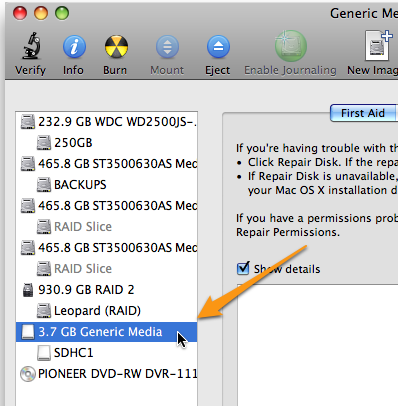
Ensure you have connected your SDHC card to your computer using a card reader and that it is appearing on your desktop or in your finder window. You should see the SDHC card mounted in the left pane of Disk Utility, more than likely it will have a sub-disk branching off it. Click on the SDHC card in the left pane, if there is a sub-disk make sure you click on the highest level (i.e. the top branche or the upper one of the two).

Once the disk is selected click on New Image at the top of the Disk Utility program window:

This will popup a new window asking you where you wish to save the image, I’d suggest you create a new folder called “SDHC Backups” and save them all in the one folder, be sure to give each image file a unique name so you can find it later:
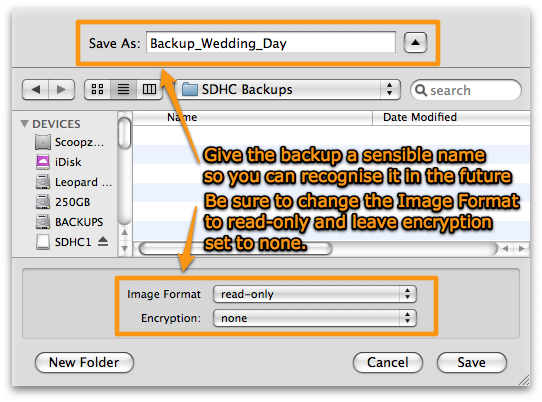

Note that the default option is for a compressed image, whilst this might work and save you some space it’s not the quickest method to create a backup image and I haven’t tested how well it works, so change it to Read-Only with no encryption. I will do a few experiments with compressed images and see how processor intensive they are, any increase in time taken to create an image and how much space is actually saved compared to a non compressed read-only image, I’ll update this article once I’ve done that. UPDATE – On a Mac Pro the compressed image takes no longer to create however there is very little space saving, uncompressed = 3.68GB whilst compressed = 3.66GB so I’m going to stick with uncompressed read-only for now.
That’s it, hit Save and it will show you the progress:
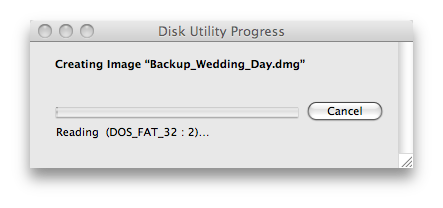

You should now have an image file the same size as the SDHC card in the folder you specified on your hard drive. You can now eject the SDHC card from your computer, and just to double check, double click the image file you just created to mount it on your computer. You can click skip on the validating stage if you are feeling confident, once you see it mounted in Finder open up iMovie and it should detect that a camera has been connected even though the SDHC card is no longer plugged in.
I got it sorted out, I think it might be something to do with whether the .dmg file is read only or not, which mine all now are. Main thing is that I can now get back to my original material and play it on the camera if I want.
Thanks for your reply Scoopz, helpful as always. The reason I like to be able to get back to the originals and restore them to an SD card is so that I can play them back on the TV in all their original glory by connecting my camera to my HDTV with an HDMI cable. I do the vast majority of my recording in 1920x1080p @ 50fps and this is the only way I have of viewing the original material at that resolution, frame rate and on a large HDTV. I don’t do it often but it’s nice to be able to do it, having originally recorded at that resolution and frame rate.
@Quentin,
That makes sense to me now, I’ve been racking my brain trying to think of a scenario when you’d want the footage back on an SD card. Are you using the restore feature of Disk Utility? There are a few things you could try, first, try formatting the card as HFS and then restore onto that to see if it still fails? Try mounting the .dmg image so it shows in your finder window and then restore the mounted image to the SD card?
In fact I’ll give it a try with some of my backups now and report back.
Scoopz (Admin)
@Quentin – Solved! I tried restoring one of the .dmg files onto an SD card that I formatted in my camera and got exactly the same error as you “Could not validate source – Invalid argument.”. I then doubled clicked the .dmg to mount it (I skipped the verifying bit as it takes too long) and then once that had mounted I then used the mounted partition and dragged that to the Source section of Disk Utility Restore tab and that then worked a treat and restored a 4.66GB .dmg onto a new 16GB SDHC card. Let me know how you get on with that?
Scoopz (Admin)
Hi
Me again. Just crossed my mind, the .dmg file I’ve generated in 4.44GB, I wonder if that creates a problem when trying to restore it to a 16GB SDHC card which is FAT32 format.
Think I’ll probably just have to stick with copying the directories over, shame.
Q
Quentin Thanks for your comments. I don’t normally restore my .dmg images back onto an SD card, I simply double click to mount them in Finder and then iMovie, iPhoto, etc see them as connected devices? At least they used to in Snow Leopard or which ever version of OS X was out when I first made this guide. I must admit I’ve not tested it under Lion or Mountain Lion.
Is there a reason why you specifically want to restore the .dmg back onto removable media (SDHC, Compact Flash, etc)?
I keep all my .dmg card backups on my Drobo, often I don’t have time to import my movies into iMovie but need the card ready to video something else so I simply create a .dmg of the card and then format it ready to shoot again. When I have time I mount the .dmg in Finder and import the movies into iMovie.
Hope that helps
Scoopz (Admin)
Hi
I thought the scheme you proposed using a .dmg file was an excellent one for keeping all the original files but I hit a problem, I’m using Mac OS 10.7.4. I followed all the instructions and generated the .dmg file just fine. Then decided to try a restore on the basis that if that wasn’t going to work then I’d rather know sooner rather than later!
Followed those instructions and hit a brick wall with the following error:
Restore Failure:
Could not validate source – Invalid argument.
Did a bit of Googling and restoration of .dmg files seems to be a not uncommon problem.
Any thoughts?
Thanks,
Q
hey, have you tried the solftware revolverhd by ShedWorx… they claim to have a solution for archiving sd cards. I wonder how disk utility compares to RevolverHD.
Dave
My new Sony HXR-MC50U I have to first create a usb connection before I can see the mount point on my desktop then:
Anyone using AVCHD footage on a mac running Snow Leopard can use the technique of archiving explained above either the whole camcorder or SD Card etc. by creating a dish image anywhere, my preference is to save on 2TB external disk
When you wish to access it double click the “yourdiskimage”.dmg mounting it to your desktop
using iMovie 09: all your files will show up and you can select all to transfer all or uncheck all and select individual files to transfer to iMovie project
For Pro Apps
do the same as above except go File–> log and transfer on Final Cut Express or Final Cut Pro drag the clips you want into the queue or select automatic and all will be transferred to your open project
when you are done go to disk utility and and eject the mounted image
Aloha
Woehoew, finally a decent solution to deal with AVCHD on my mac!
However, I’m not completely satisfied because I use my Panasonic camera to film skateboarding. Let’s say we film 100 little clips in one session, and in our final edit we won’t use more than 5 percent of it.
Is there away to exclude these clips from the disk image easily?
Thanks
Fantastic!!! Very useful indeed. Thank you very much for spending the time to put this piece together.
Thanks so much for the timely reply! I think I might have a ISO creator on my computer already. I will check those programs out too though, just in case. Thanks again. 🙂
@Keke – I’ve had a good hunt around and asked everyone I know on twitter but nobody’s come back with a windows equivalent to OS X’s Disk Utility I’m afraid. Windows has a similar built in admin console “Disk Management” to partition and format drives but not for creating disk images.
There are two programs that I’ve found but neither are freeware, however, they do both offer free trials.
R-Drive (15 day trial)
WinImage (30 day tiral)
See how you get on with either of the above programs, just create .iso files rather than .dmg files as explained in this blog.
If you do manage to find one, please let me know.
Scoopz (Admin)
Is this or a similar feature available on PC? The disk image thing, I mean.
Thanks Uncle Scoopz, you’re the best!x
Hi, i have a canon hf100 an use a 8gb sdhc card, recently i wanted to store some of te videos to free up some space, as i was going away an wanted to take my camera, i copied the .MTS files into a folder on my mac, which somehow got deleted, but now when i insert the card into my mac imovie does not pick it up atall so the remaining videos are literally untoachable, all my other sdhc cards work fine, i think when i took just the MTS files of it must have disturbed the card is some way? i can still record and playback the videos on my camera using this card but it just wont work when i interested the card to my Mac.
Any ideas what i can do?
@Nik Mehta – I don’t like partitioning a hard drive without reformatting, from past experience (on Windows apps) it can work but can also fail badly and you still end up losing all your data. It looks like there is a program call GParted that can do this though, have a read of:
http://www.macosxhints.com/article.php?story=20080216071647156
Don’t worry about your initial backup being smaller than your used HDD space, the backup will probably excluded all the default operating system files as these can be restored from the original install DVDs, it might also be choosing to not backup any temporary files, caches, built in print drivers, multiple languages, etc which would easily amount to 5GB. There’s a free app called Monolingual that can do this for you, I ran it and saved 5GB+ on my MB Air.
Scoopz (Admin)
Thanks for your reply. Any guidance that you can give on partitioning the external hard drive without reformatting would be really appreciated.
One question: My hard drive is 38.74GB but the Time Machine backup is only 33.63GB. Could you explain why the backup is smaller? I’ve checked and there are no exclusions listed other than the external hard drive.
Thanks
@Nick Mehta – First thing to point out is that Time Machine will eventually fill up the entire 320GB drive. Whilst there is probably quite a bit of room on the 320GB drive after your first ful T.M. backup, hence you can drag your SDHC backup folder to it. With every subsequent backup T.M. does though, it will keep keep using the free space until it’s all gone. There is no simple way to limit T.M. to only use say 200GB or 50% of the disk space. I’ve been meaning to write a new blog post about the workarounds for this, basically your options are partitioning the drive from new creating a 160GB partition for TM and 160GB partition for Documents, there’s a bit of terminal magic you can do that sets a maximum limit for the TM backups or you can create a “sparse bundle” disk image on the disk to keep all your files in..it all sounds more complicated that it needs to be. Apple should just have a Time Machine preference for setting disk space allowance for T.M.
Moving on, when you import the movies from the virtual SDHC DMG images into iMovie it is going to result in HUGE file sizes like you have found. Without sitting at my Mac I’m sure there’s an option that lets you pick which drive to use to store the imported movie files? You can certainly move them to the USB drive BUT bear in mind a USB2.0 drive is not going to be as quick as an internal drive or a Firewire drive when it comes to editing the raw movie data. I tend to move mine to an internal RAID array (several disks arranged to give much quicker than normal read/write speeds), I’ve never tried it from a USB drive so couldn’t tell you how much of a performance loss there is going to be but give it a try.
You might want to keep the raw data on the main internal drive whilst you edit it, then once the movie is complete, export it and then move the raw files to the USB HDD (I think you just drag and drop them in iMovie browser window).
IMPORTANT: If you put the raw movie footage onto your internal drive, say a 26GB file, then by default this 26GB file will get backed up to your Time Machine drive and you’ll soon find 320GB is gone. If you are going to work this way, in the preferences for Time Machine add the iMovie Projects Events folder to the list of folders NOT included in the backup.
I’ve just returned a 500GB WD Passprt drive to WD for replacement as it died completely. For this reason I wouldn’t recommend moving your iMovie collection to the same drive that your Time Machine Backup is on. Leave the iPhoto Library on your main drive and then if your computer dies you’ve got a backup on your TM drive and vice versa. Also, there would be a performance loss running iPhoto off a USB drive.
Scoopz (Admin)
Just a few more questions, if you don’t mind.
I have now bought a 320gb external hard drive. I’ve backed up my mac using time machine and I have also moved the ‘SDHC backup’ folder to the external hard drive.
I have imported the movie into imovies and it has created a folder of 26GB. Would you recommend moving the entire movies folder to the external drive? Will I still be able to edit it easily in imovies?
Also, would you recommend moving my entire iphoto library to an external drive? Is it easy to continue working of this?
Thanks again.
@Nick Mehta – I only have a few 4GB SDHC cards and just swap out when one gets full, on full resolution I’m getting 20-30mins on one 4GB card.
I’ve just looked at the most recent event I’ve imported at HD resolution into iMovie 09 and it’s 23mins and 7 seconds long and is coming in at 15.87GB once extracted from the SDHC card and I think that was shot in the lowest quality HD setting on my camera.
I always import my movies at the highest possible resolution but that’s because I’m not short on space and could potentially watch a HD edited video via my AppleTV. If, however, you are only planning on editing a movie and then burning it to DVD to watch on a standard DVD player then I see no *real* reason to import at full resolution, a DVD is:
-720 x 480 (NTSC)
-720 x 576 (PAL)
so importing using iMovie 09’s Large option [960×540] rather than Full [1920×1080] will be more than sufficient for DVD.
However, lets say in the future Apple bundle BluRay superdrives into their newest models, if you had imported at full resolution you could simply re-export to DVD and have the edited movie in glorious HD, if you only imported at Large quality then all is not lost, as you’ve used my tutorial to make digital archives of the SDHC cards so you can always re-import the footage at full resolution BUT you will have to re-edit all the scenes, cut, chop etc.
I’m going to import a 2 minute clip from my camera now at Large and Full resolution for you and see what the resulting file size, hence disk space saving, really is.
UPDATE : I’ve just imported a 2min 38 second clip and the resulting file sizes in iMovie 09 are:
Large [960×540] = 528.7MB
Full [1920×1080] = 1.84GB
So importing at Large resolution is going to take up around 30% of the size of Full resolution but obvious the quality.
Scoopz (Admin)
Thanks for providing such clear information. Just a couple more questions if you don’t mind. I have two sdhc cards (4gb and 16gb). Would you recommend importing them into iMovie as large rather than high def files? I want burn them on to a DVD after editing. How much space would they take up? I don’t yet have an external hard drive so will need to keep the image and edited movie on my mac.
Thanks again.
@Nik Mehta – I keep the disk image of the SDHC card on a separate hard drive in my computer and use that to import into iMovie, which then creates a second copy in the Movies folder on my main hard drive (albeit without the 5.1 surround info etc). If the video footage is important to you then I would definitely suggest keeping a second copy on an external drive of some sort, I use a 1TB TimeCapsule to constantly backup my entire machine so I only keep one copy of the disk image knowing that I can easily restore a copy from the TC if needed.
You can easily move the disk image back to the SDHC card to view on your TV, I’m assuming the only HD source you have for your TV is the output from the HD video camera and whatever SDHC card is in that. Just insert a blank SDHC card into your card reader and then click “Restore” in Disk Utility app and browse to the DMG image and restore it back to the SDHC card, make sure the card is blank first because all media on the target drive will be erased. Regards other ways of getting HD onto your tv, I’ve not dabbled with any Blu-Ray players or burners yet, I’ve got some AppleTV’s around the house which can handle HD but I’ve not yet exported HD video from my camera to the AppleTV yet but I might give it a go and see how it looks.
Scoopz (Admin)
Thanks for the information above on making a disk image of a SDHC card. Would you recommend keeping one disk image on your mac and to use that in IMovie ’09, and one copy on an external hard drive?
Also, if I wanted to view the High Def movie, could I move the disk image back to the SDHC card? If not, how can I view the High Def movie on my tv?
Thanks again.
@Brandon Beam – You are right about Final Cut Pro 6, it should be able to handle pretty much any kind of video source but I have a feeling you may struggle if you have simply dragged the video source files from the SDHC card into a folder on your hard drive and then drag the video from that folder into FC Pro.
This is similar to what I tried to do the first time I needed to free up an SDHC card but didn’t want to wait for all the video to import into iMovie. For this reason I had to create the .DMG image file from the SDHC card and then mount that to use as the source for iMovie to import.
I have a feeling some of the other folders on the SDHC card (perhaps hidden folders) contain some important information about the codec iMovie/Final Cut Pro/etc need to use. You could try using TinkerTool (free app) to turn on the option to view hidden files in OS X and then see what shows up on an SDHC card, perhaps there is a hidden .panasonic folder that has codec info in that you can simply copy into the folder you’ve already copied the files to.
What happens if you drag the video files back from the folder on your hard drive to an SDHC card and then try and import from the SDHC card to Final Cut Pro? Don’t format the card before doing this just in case it overwrites any hidden folders, just copy over the top of an SDHC card and “replace all” if it asks.
Last resort, can you drag the AVCHD files from the folder you created to VLC and will they play? You may be able to use a video conversion tool (VisualHub was really good but no longer available, the source files are now freely available somewhere) to convert the avchd files to raw footage that Final Cut Pro can handle?
Keep me posted on your findings.
Scoopz (Admin)
I have the same panasonic video camera, and when i put the SDHC HD video in a folder and try to import it into final cut pro 6, it says that its not codec’ed right? and that i need some card? Final Cut pro can read almost every format possible, i dont understand why it wont let me edit my video